Sick leave
Submission and approval
An employee can submit a new sick leave notification on Integrata®’s Service Platform, either via the mobile app or browser. A medical note can also be conveniently submitted at the same time.
Depending on the enabled features and integrations, employees can:
- Submit a sick leave notification
- Upload a medical note
- Upload an employment-related document
- Upload another type of document
- Edit rejected or pending sick leave periods
If a manager approval flow is in use, managers can also submit notifications on behalf of their team members. The process is identical to submitting one’s own notification, with the exception that the manager selects the team member from a dropdown menu.
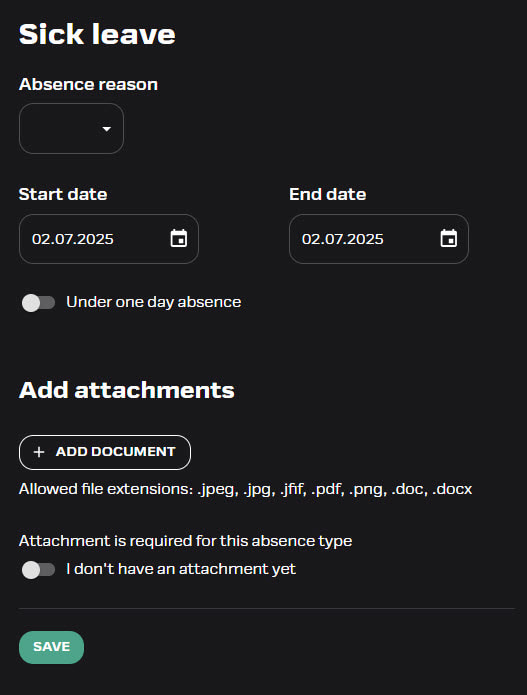
New sick leave
You can find the “Sick Leave” feature on the home screen of the mobile application or in the browser’s list of available features. Fill in the required details in the form fields:
- Reason for absence – choose from the dropdown menu
- Period of absence – enter the start date and end date
- If the absence lasted less than one day, activate the toggle and enter the time (A customer‑specific feature)
- Save
- In case you already have an event saved for the same time time period, the application will give an alert in such case
- If an attachment is required, upload the file from your device or add with camera on the mobile app
- If you do not yet have the required attachment, activate the toggle “I don’t have the attachment yet”
- The app will start sending reminder messages after three days if the attachment is still missing and the transaction has not yet been processed in the approval flow.
Submitting attachments
Attachments can be submitted along with the absence notification or separately afterwards, depending on the configured features. If your company has enabled submitting of other types of attachments, you can find these options under Other Attachment (mobile) or Attachments (browser).
- To add an attachment in the browser app, click the “Add Document” button and upload the correct file from your computer.
- To add an attachment in the mobile app, either take a photo or upload a file from your phone’s gallery.
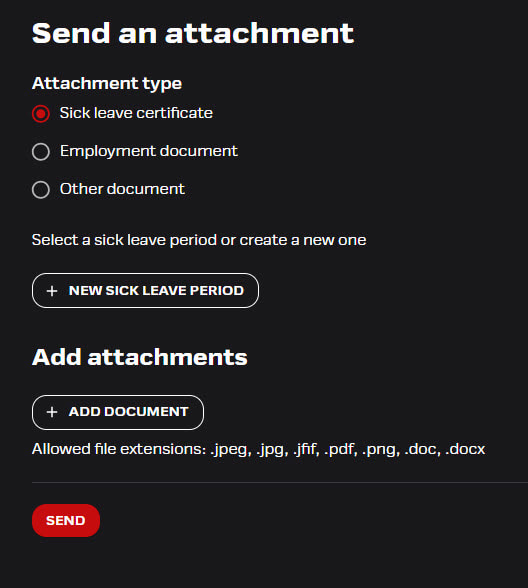
Adding attachments afterwards
- Attachments can still be added to absence periods that are awaiting approval
- To add an attachment to an already submitted absence, select the “Other Attachment” button in the mobile app or the “Attachments” function in the browser app
- Select “Sick Leave Certificate” and then select the desired absence period from the list
Edit or decline
You can edit a submitted or rejected transaction.
- If an attachment or absence period is rejected by the manager, the user will be notified separately
- If necessary, you can also reject the notification yourself in the browser
- Reason for declining will be shown on the event
- Status and the timestamp for the absence can be seen on the event
- It is not possible to edit an approved transaction, and no attachments can be added after approval

Approvals view
If an approval workflow is set for sick leave events and attachments, the events will go to approver. The HR role can be granted access to manage approvals on behalf of managers in a dedicated view.
- Transactions awaiting approval can be processed via the mobile app or browser
- Approvals-view will list all events waiting for approval: holiday bonus exchange, attachments and absences
- Filtering options: status, team member, substituted manager and event type. Chosen filtering will remain until changed.
- Once used filtering will remain until changed
- Approvals won’t show substitutions until filtered accordingly

- If necessary, the approver can edit the event information
- Approvers see a warning if an employee has submitted an absence without a required attachment. The absence may be approved at the approver’s discretion, but attachments cannot be added after approval.
Two-phased approval
- If own manager is also HR, the approval is only done once
- Pending status “Waiting for HR’s approval” can be viewed in the Approvals view
- If only HR approvals is configured, managers will not see Approvals-menu

Notifications and reminders
New absences to be processed are always notified to the manager and substitute via push notification and email.
- Managers and their substitutes will receive a reminder message about unapproved sick leave notifications or attachments if any such items have been pending approval for more than 7 days. After that, the reminder will be sent once a week.
- If two-phased approval flow is active, HR will receive notification after manager’s approval
- Employees will be notified if a transaction is rejected or approved
- Employees will also receive daily reminders starting three days after submission if the absence is still pending approval and the required attachment is missing
Substitute management
Managers can assign a substitute for their absence.
- You can find the “Manage Substitutes” menu in the top right corner under the profile icon in web application
- In the mobile app same setting can be accessed through Settings
- A substitute can be appointed for an indefinite period or for a fixed period
- You can assign another user as a substitute. If the substitute is not a manager, they can only be approved in the browser application.
- The substitute can act on your behalf and receive notifications of new events
- The substitute can also send attachments on behalf of your subordinate
- You can have one or more substitutes
- If no substitutes are yet set, the app will automatically suggest making the setting
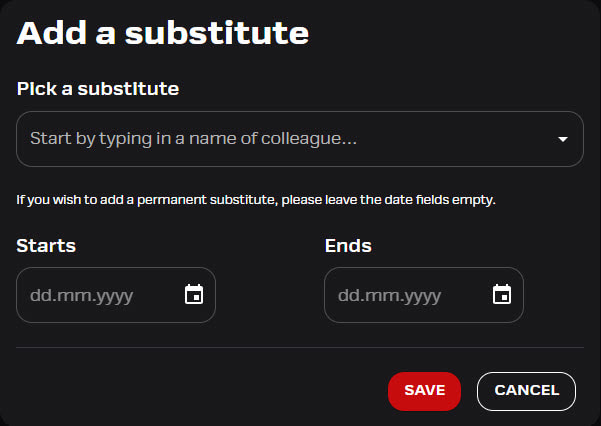
Adding a substitute on behalf of a manager
The admin role has the right to add substitutes on behalf of a manager..
- Go to the “Personnel” menu and search for the manager by name.
- Open the user’s card, and add the substitute on the “Substitutes for this manager” tab.