Approval flow
If an approval workflow is set for sick leave events or other employee’s actions, the events will go to approver. Approver can be own manager, manager’s substitute or HR. The HR role can be granted access to manage approvals on behalf of managers in a dedicated view.
Events awaiting approval can be processed via the mobile app or browser.
Approvals-view will include all employee’s events that require the approvals actions: Holiday bonus exchange requests, documents or absences.
- Approver sees all new, approved and declined events
- New events will activate notifications
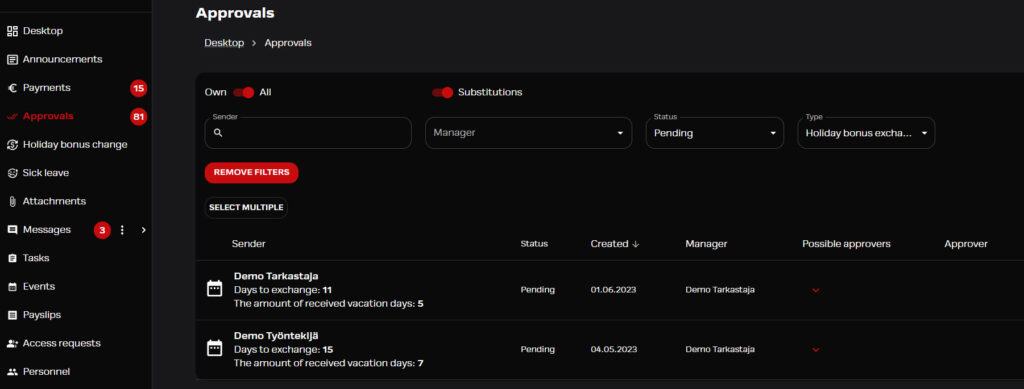
- Filtering options: status, team member, substituted manager and event type. Chosen filtering will remain until changed.
- Approvals won’t show substitutions until filtered accordingly
- If the event or document was send on behalf of a team member, it will automatically be approved by the sending manager

- If necessary, the approver can edit the event information
- Approvers see a warning if an employee has submitted an absence without a required attachment. The absence may be approved at the approver’s discretion, but attachments cannot be added after approval.
If HR-role has been given additional managing access to events, all personnel events can be seen under Approvals-view. These will not activate notifications for HR, but they can be processed on behalf of managers.
Approval of holiday bonus exchanges
Optional approval flow for holiday bonus exchanges can be set per exchange period. These requests can be approved either by managers or HR. Two-phased approval is not available in this feature.
- Approvers are notified of new exchange requests
- In addition to usualö approver tools, the approver can approve several requests at once using the “Select multiple” button, available when filtering by “Status: Pending” and “Type: Holiday bonus exchange”
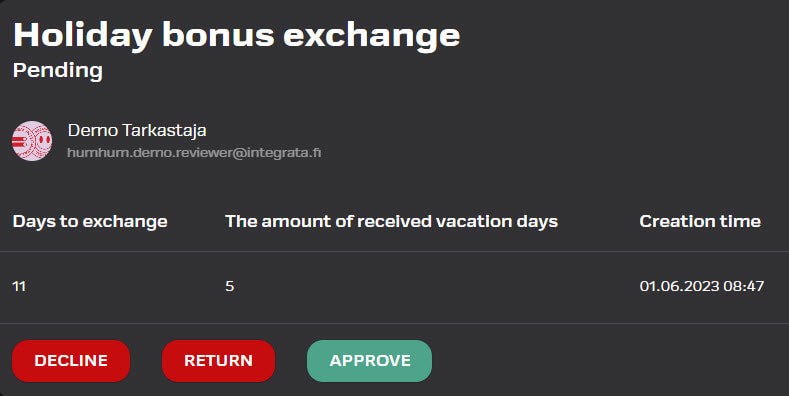
- Depending on the situation, the approver can mark the exchange as approved, or reject/return the request
Two-phased approval
Two-phased approval flow is an optional setting that will guide absences or documents to be approved by HR after manager has cleared them.
- If own manager is also HR, the approval is only done once
- Pending status “Waiting for HR’s approval” can be viewed in the Approvals view
- If only HR approvals is configured, managers will not see Approvals-menu

Notifications and reminders
New absences to be processed are always notified to the manager and substitute via push notification and email.
- Managers and their substitutes will receive a reminder message about unapproved sick leave notifications or attachments if any such items have been pending approval for more than 7 days. After that, the reminder will be sent once a week.
- If two-phased approval flow is active, HR will receive notification after manager’s approval
- Employees will be notified if a transaction is rejected or approved
- Employees will also receive daily reminders starting three days after submission if the absence is still pending approval and the required attachment is missing
Substitute settings
Managers can assign a substitute for their absence.
- You can find the “Manage Substitutes” menu in the top right corner under the profile icon in web application
- In the mobile app same setting can be accessed through Settings
- A substitute can be appointed for an indefinite period or for a fixed period
- You can assign another user as a substitute. If the substitute is not a manager, they can only be approved in the browser application.
- The substitute can act on your behalf and receive notifications of new events
- The substitute can also send attachments on behalf of your subordinate
- You can have one or more substitutes
- If no substitutes are yet set, the app will automatically suggest making the setting
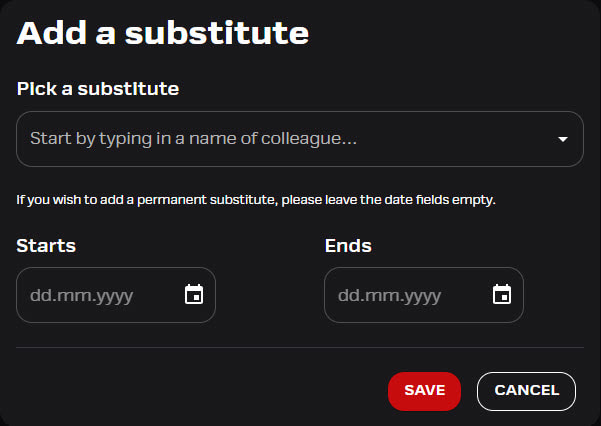
Adding a substitute on behalf of a manager
The admin role has the right to add substitutes on behalf of a manager..
- Go to the “Personnel” menu and search for the manager by name.
- Open the user’s card, and add the substitute on the “Substitutes for this manager” tab.