Sick leave
New absence or certificate
An employee can submit a new sick leave event on Integrata®’s Service Platform, either via the mobile app or browser. A medical note can also be conveniently submitted at the same time.
Depending on the enabled features and integrations, employees can:
- Submit a sick leave event
- Upload a sick leave certificate
- Upload other documents
- Edit rejected or pending sick leave periods
If a manager approval flow is in use, managers can also submit notifications on behalf of their team members. The process is identical to submitting one’s own notification, with the exception that the manager selects the team member from a dropdown menu.
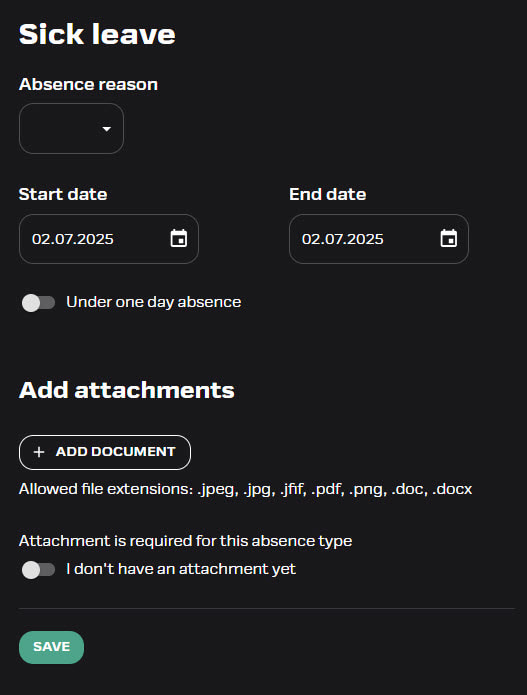
New sick leave
You can find the “Sick Leave” feature on the home screen of the mobile application or in the browser’s list of available features. Fill in the required details in the form fields:
- Reason for absence – choose from the dropdown menu
- Period of absence – enter the start date and end date
- If the absence lasted less than one day, activate the toggle and enter the time (A customer‑specific feature)
- Save
- In case you already have an event saved for the same time time period, the application will give an alert in such case
- If an attachment is required, upload the file from your device or add with camera on the mobile app
- If you do not yet have the required attachment, activate the toggle “I don’t have the attachment yet”
- The app will start sending reminder messages after three days if the attachment is still missing and the transaction has not yet been processed in the approval flow.
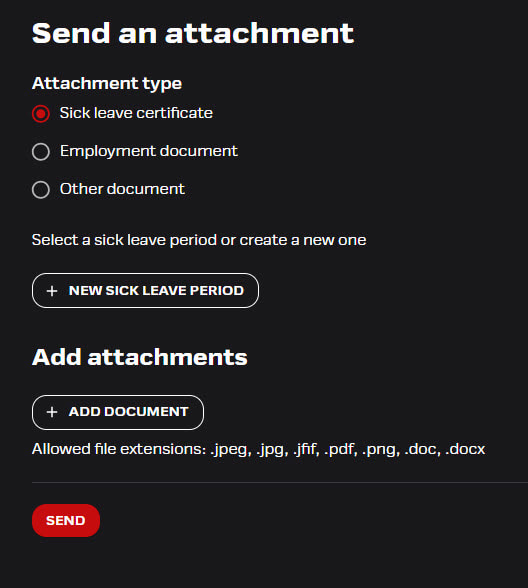
Submitting attachments for absences
Attachments or sick leave certificates can be submitted along with the absence notification or separately afterwards, depending on the configured features. If your company has enabled submitting of other types of documents, you can find these options under Other Attachment (mobile) or Documents (browser).
- Choose Sick leave certificate from the available options and upload the correct file from your computer
- To add an attachment in the mobile app, either take a photo or upload a file from your phone’s gallery.
- If you did not yet add your sick leave period, you can do it here, or choose from the list of pending absence periods
- Finally press Send
Edit or decline
You can edit a submitted or rejected absence event.
- If a document or absence period is rejected by the manager, the user will be notified separately
- If necessary, you can also reject the notification yourself in the browser
- Reason for declining will be shown on the event
- Status and the timestamp for the absence can be seen on the event
- It is not possible to edit an approved transaction, and no attachments can be added after approval

Notifications and reminders
New absences to be processed are always notified to the manager and substitute via push notification and email.
- Managers and their substitutes will receive a reminder message about unapproved sick leave notifications or attachments if any such items have been pending approval for more than 7 days. After that, the reminder will be sent once a week.
- If two-phased approval flow is active, HR will receive notification after manager’s approval
- Employees will be notified if a transaction is rejected or approved
- Employees will also receive daily reminders starting three days after submission if the absence is still pending approval and the required attachment is missing