General
Administrator
The administrator role is an additional user role that provides visibility into the user information of your own personnel. You can conveniently manage and update user information through its dedicated function. To enable the administrator role, please contact application support. If your company already has an administrator, they can grant you the necessary access rights.
With the Administrator role, you can:
- See all users in your organization and their roles in the Personnel menu
- Manage user roles. This adds flexibility and speeds up role updates, as the information can be updated directly by you
- Appoint a substitute for a manager
- To review managers and their team members
- Add or edit user information
- Deactivate a user
Please note that you cannot update your own information.
Add a role
Administrators can update user roles.
- New roles can be assigned at the company or customer level. This is relevant for the Payments and Messages functionalities. Company-specific settings do not affect other functions
- At the company-level, you might have payment groups or even a separate level for the travel expense payment process
- On the messaging side, company-level access in messages means the user only sees role-specific messages for their assigned companies
- Customer-level access allows viewing all role-relevant communication across companies, including conversations that are not specifically tied to a company
- For payments, access is limited by company-specific roles, meaning the user will not see other company or payment group levels
- Customer-level rights automatically grant access to all current and potential future organizational levels and companies
- The Administrator role cannot be assigned only at the company level
See here for descriptions of the different roles and their intended purposes. The use of each role depends on the functionalities enabled for the company and the default controls for each message category.
- If you are introducing a completely new role, we recommend contacting application support to ensure optimal setup and configuration.
- The default recipients for each message category are updated by Integrata.

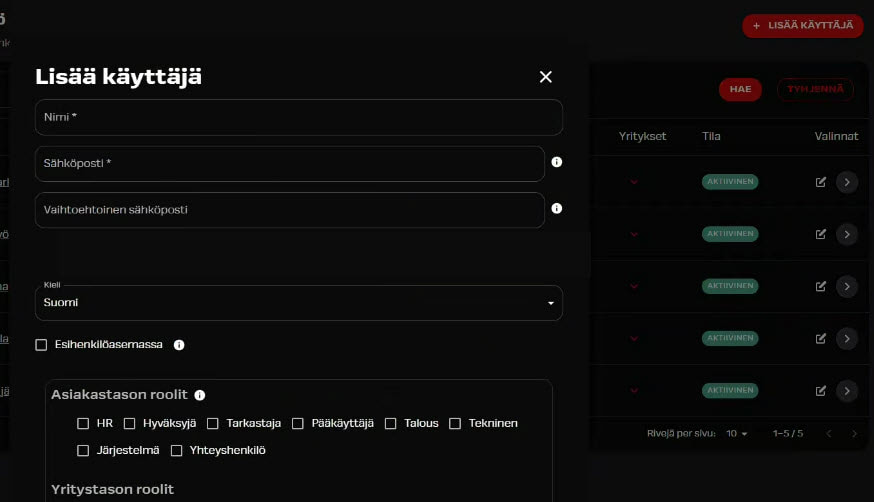
Adding and modifying users
Administrators will see an “Add user” button in the “Personnel” function, which they can use to add new users. Please note that if the company uses a personal data interface, there is no need to create users separately. Enabling extended HR functions, such as payslips, requires a personal data interface.
For a new user, the following will be added:
- Name
- Username
- Alternative email address, if the username is not an email address
- Default language
- Manager role (if needed)
- Other possible user roles
- The company with which the user has an employment relationship
Any other personal data is managed via the personal data interface and is not accessible through the user interface.
To edit a user, select an existing user from the personnel list. You can also deactivate users, particularly if their employment end date isn’t automatically updated through the interface. Furthermore, ensure you make all necessary adjustments in the personal data management system to prevent outdated information from being re-imported via the interface.
Adding a substitute for a manager
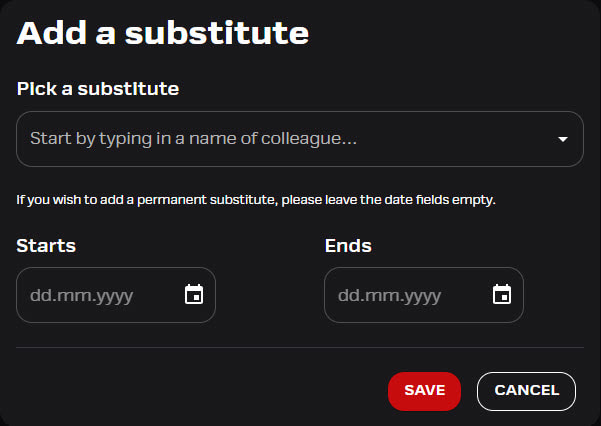
Managers can assign a substitute for themselves for the duration of their absence in the browser application.
- You can find the “Manage substitutes” menu in the top right corner under the profile icon.
- A substitute can be appointed for an indefinite period or for a fixed period.
- You can assign another user as a substitute. If the substitute is not a manager, they can only be approved in the browser application.
- The substitute can act on your behalf and receive notifications of new events.
- The substitute can also send attachments on behalf of your subordinate.
- You can have one or more substitutes.
Adding a substitute on behalf of the manager
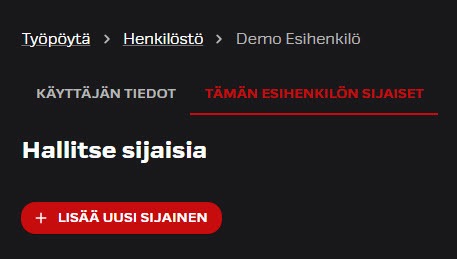
The administrator role has the right to add substitutes on behalf of a manager.
- Go to the “Personnel” menu and search for the manager by name.
- Open the user’s card, and add the substitute on the “Substitutes for this manager” tab.